How to Configure a Fresh VPS with Traefik for Multiple Apps and Light Monitoring
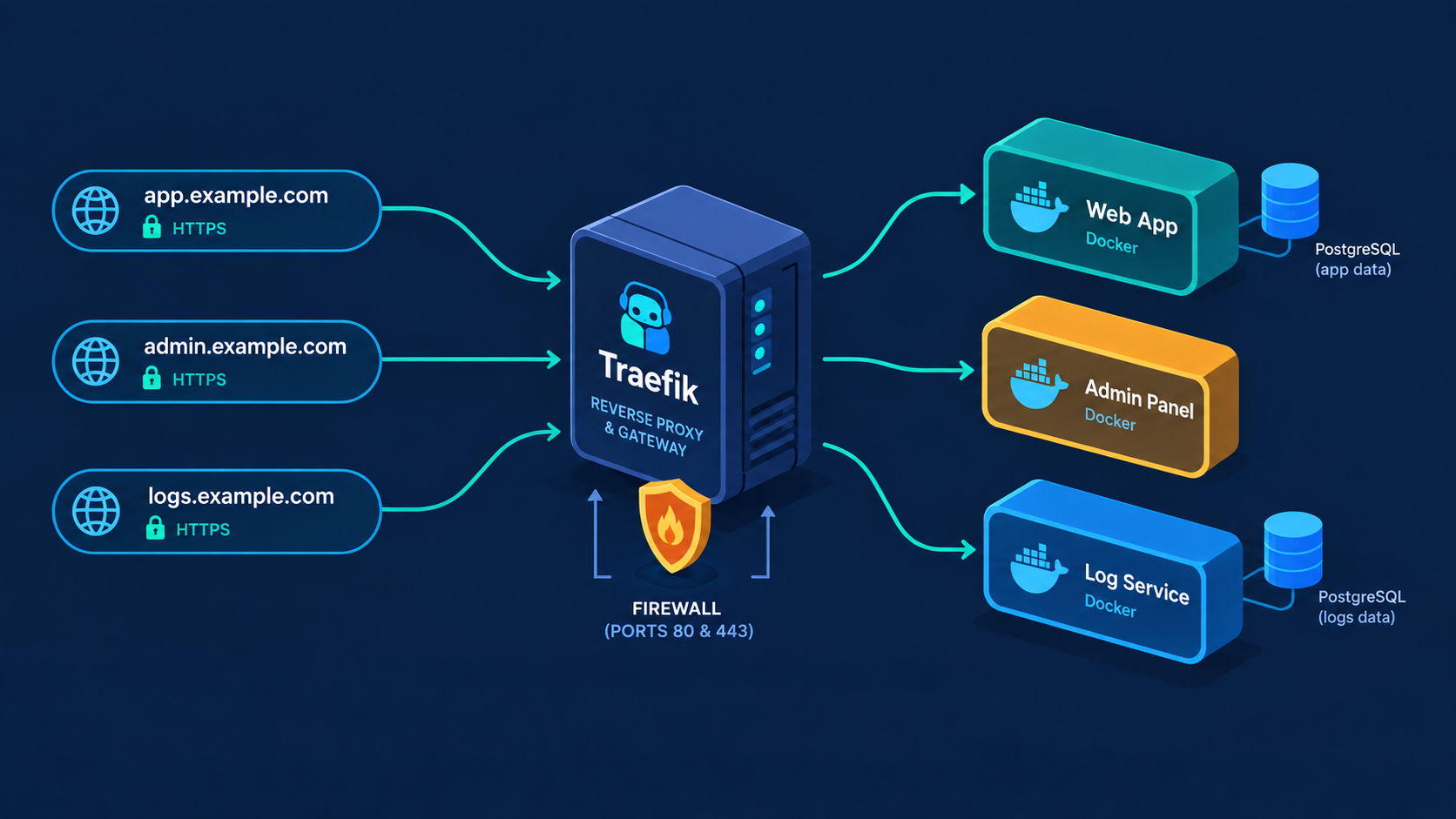
You just bought a VPS and you want it to host several apps — different domains, different services — with HTTPS that renews itself and no friction when you add the next project. This guide takes a bare Ubuntu box to exactly that, using Docker and Traefik as the reverse proxy. Adding a new app becomes a matter of copying a folder and changing a few labels.
Why Traefik instead of Nginx
With the classic Nginx approach you edit a central config file every time you add a site, then run certbot on a cron. Traefik reads its routing rules from Docker labels on your containers. Start a container with the right labels and the route appears within seconds; stop it and the route disappears. Certificates are requested and renewed automatically. You never edit the proxy config again.
Step 1 — Harden the box
Log in as root the first time, update, and create a normal user (call it deploy):
apt update && apt upgrade -y
adduser deploy && usermod -aG sudo deploy
rsync --archive --chown=deploy:deploy ~/.ssh /home/deploy
Lock down SSH in /etc/ssh/sshd_config: set PermitRootLogin no, PasswordAuthentication no, PubkeyAuthentication yes. Restart with systemctl restart ssh — but confirm you can log in as deploy in a second terminal before you close the root session.
apt install -y ufw fail2ban unattended-upgrades
ufw default deny incoming && ufw default allow outgoing
ufw allow OpenSSH && ufw allow 80/tcp && ufw allow 443/tcp
ufw enable
dpkg-reconfigure -plow unattended-upgrades
The one gotcha that bites everyone
Docker writes its own iptables rules that sit above UFW. Any container that publishes a port with ports: is reachable from the internet even though UFW says deny — UFW never gets a say. The rule to live by: only Traefik publishes ports. Every other container talks to Traefik over an internal Docker network and never uses ports:.
Step 2 — Install Docker
curl -fsSL https://get.docker.com | sh
usermod -aG docker deploy
docker network create proxy
The proxy network is the shared bus between Traefik and your apps. Log out and back in so your group membership takes effect.
Step 3 — The Traefik stack (once)
In ~/traefik/docker-compose.yaml:
services:
  traefik:
    image: traefik:latest
    restart: unless-stopped
    ports: ["80:80", "443:443"]
    networks: [proxy]
    volumes:
      - /var/run/docker.sock:/var/run/docker.sock:ro
      - ./letsencrypt:/letsencrypt
    command:
      - --providers.docker=true
      - --providers.docker.exposedbydefault=false
      - --providers.docker.network=proxy
      - --entrypoints.web.address=:80
      - --entrypoints.web.http.redirections.entrypoint.to=websecure
      - --entrypoints.web.http.redirections.entrypoint.scheme=https
      - --entrypoints.websecure.address=:443
      - [email protected]
      - --certificatesresolvers.le.acme.storage=/letsencrypt/acme.json
      - --certificatesresolvers.le.acme.httpchallenge.entrypoint=web
networks:
  proxy:
    external: true
mkdir letsencrypt && touch letsencrypt/acme.json && chmod 600 letsencrypt/acme.json
docker compose up -dThis redirects all HTTP to HTTPS, watches the Docker socket for labels, and handles Let's Encrypt automatically.
Step 4 — Add your first app
Point the domain's A record at the VPS. Then in the project's own folder, ~/app-one/docker-compose.yaml:
services:
  web:
    image: ghcr.io/yourname/yourapp:latest
    env_file: .env
    restart: unless-stopped
    depends_on:
      db:
        condition: service_healthy
    networks: [proxy, internal]
    labels:
      - traefik.enable=true
      - traefik.http.routers.appone.rule=Host(`app-one.example.com`)
      - traefik.http.routers.appone.entrypoints=websecure
      - traefik.http.routers.appone.tls.certresolver=le
      - traefik.http.services.appone.loadbalancer.server.port=8000

  db:
    image: postgres:18
    env_file: .env
    restart: unless-stopped
    volumes: [pgdata:/var/lib/postgresql]
    networks: [internal]
    healthcheck:
      test: ["CMD-SHELL", "pg_isready -U $${POSTGRES_USER} -d $${POSTGRES_DB}"]
      interval: 5s
      timeout: 3s
      retries: 10

volumes:
  pgdata:
networks:
  proxy:
    external: true
  internal:
Two things worth calling out. Only web joins proxy; the database sits on internal where Traefik and the outside world can't reach it. And note the Postgres 18 data path is /var/lib/postgresql, not /var/lib/postgresql/data as in older images — get this wrong and your data lands in an anonymous volume that vanishes on recreate.
The labels are the whole story: enable tells Traefik to look, the Host rule maps a domain to this container, certresolver=le requests a cert for that host, and server.port is the port your app listens on inside the container.
Static files and media
Traefik routes requests but doesn't serve files from disk. For a Django app, the clean split is WhiteNoise for static (baked into the image at collectstatic) and an S3-compatible bucket for user uploads via django-storages. That keeps each project to just web and db — no per-project Nginx.
Step 5 — Adding the next app is copy-paste
Copy the folder, change the image, rename every occurrence of appone in the labels to something unique, and change the Host. Router and service names must be unique across the whole VPS because Traefik sees every container.
cd ~/app-two && docker compose up -dNew cert on first request, live in about a minute. Traefik is never touched.
Certificate pitfalls
Two errors are common. First, if your Host rule lists a name with no DNS record — say www.app-one.example.com when only app-one.example.com exists — Let's Encrypt fails the entire certificate, because it issues one cert covering all names in the rule. List only names that actually resolve. Second, DNS must point at the VPS before the container starts, or the HTTP challenge fails. Failed attempts are rate-limited (five per hostname per hour), so fix the cause and wait rather than restarting in a loop.
Step 6 — Light monitoring, done safely
Two small tools cover day-to-day visibility: Dozzle for live container logs in the browser, and Portainer for a container dashboard. The temptation is to give them ports: like 8080:8080 — and they'll appear to work. But remember the UFW gotcha: that port is now open to the whole internet, and these tools expose your logs and your Docker socket. Put them behind Traefik like everything else, with basic-auth on top.
  dozzle:
    image: amir20/dozzle:latest
    restart: unless-stopped
    networks: [proxy]
    volumes:
      - /var/run/docker.sock:/var/run/docker.sock:ro
    labels:
      - traefik.enable=true
      - traefik.http.routers.dozzle.rule=Host(`logs.example.com`)
      - traefik.http.routers.dozzle.entrypoints=websecure
      - traefik.http.routers.dozzle.tls.certresolver=le
      - traefik.http.services.dozzle.loadbalancer.server.port=8080
      - traefik.http.routers.dozzle.middlewares=dozzle-auth
      - traefik.http.middlewares.dozzle-auth.basicauth.users=REPLACE_HASH

  portainer:
    image: portainer/portainer-ce:latest
    restart: always
    networks: [proxy]
    volumes:
      - /var/run/docker.sock:/var/run/docker.sock
      - portainer_data:/data
    labels:
      - traefik.enable=true
      - traefik.http.routers.portainer.rule=Host(`portainer.example.com`)
      - traefik.http.routers.portainer.entrypoints=websecure
      - traefik.http.routers.portainer.tls.certresolver=le
      - traefik.http.services.portainer.loadbalancer.server.port=9000
      - traefik.http.routers.portainer.middlewares=portainer-auth
      - traefik.http.middlewares.portainer-auth.basicauth.users=REPLACE_HASH
Point Portainer's service port at 9000 (its plain-HTTP port) and let Traefik handle TLS — never expose 9443 directly. Generate the auth hash with htpasswd -nb youruser 'yourpassword' (from apache2-utils), then double every $ to $$ before pasting it into the compose file.
Verify the firewall is actually closed
After moving everything behind Traefik, check from your laptop that the old direct ports are dead:
curl -sS -o /dev/null -w '%{http_code}\n' http://YOUR_IP:8080   # should refuse or hang
sudo ss -tlnp                                                   # anything on 0.0.0.0 that isn't 22/80/443 is a hole
The mental model
Traefik owns 80 and 443. Everything else lives on the proxy network, reachable only through it, with databases tucked away on a private internal network. Adding a project is a new folder and a handful of labels. TLS is automatic. Monitoring is one subdomain each, behind a password. That's a host you can grow onto for years without touching the proxy config again.